How to clear cookies on Chrome
As one of the most popular internet browsers, Google Chrome is available on many devices—and there’s a way to remove cookies from each one.
Chrome on a Windows or Mac computer
How to clear cache and cookies on Chrome:
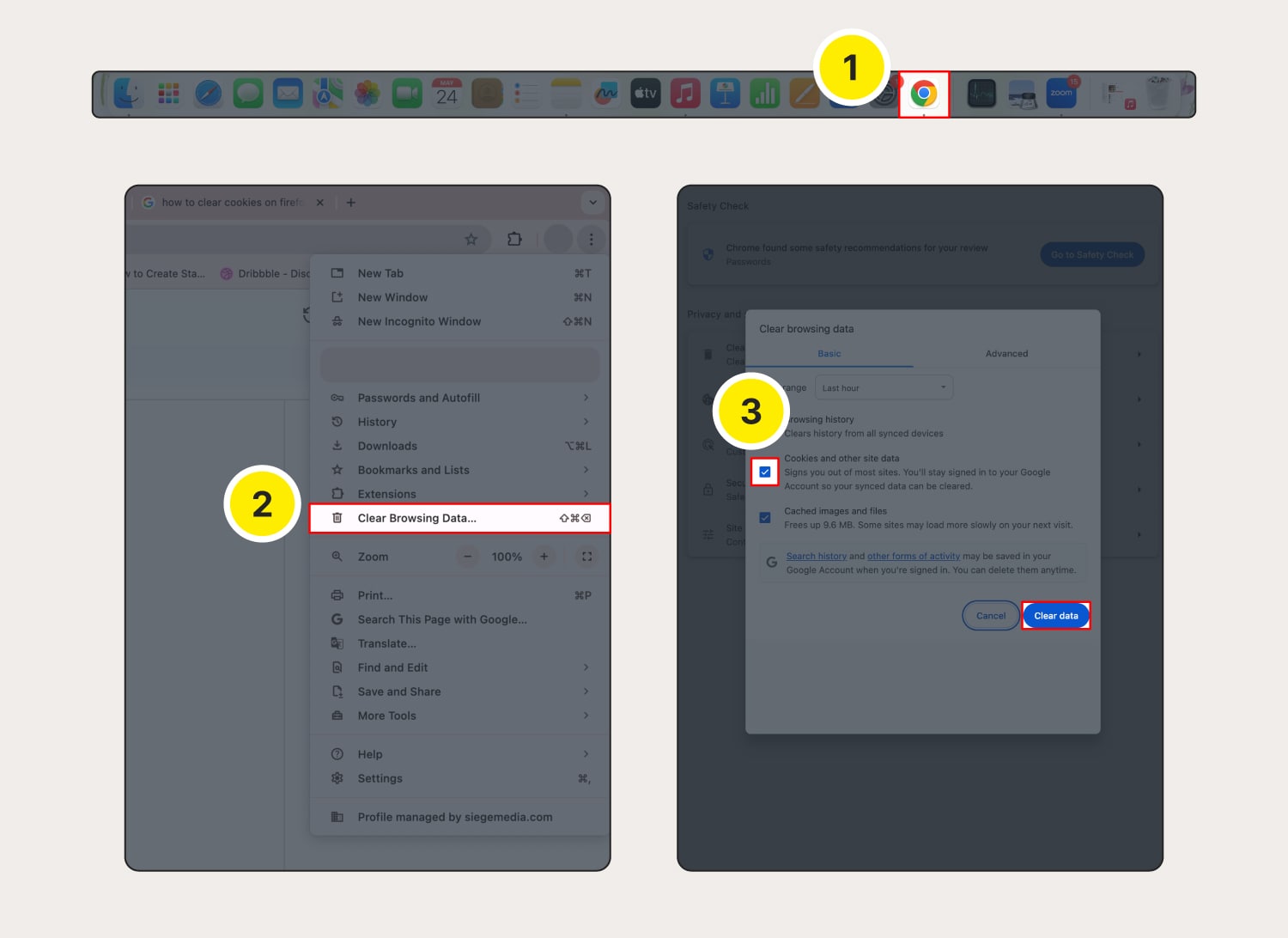
Open Chrome.
Click the three dots in the top-right corner, then select Clear Browsing Data.
Choose the time range for which you want to clear cookies. Mark the checkbox next to Cookies and other site data and any other data you want to clear (like cache), then click Clear data.
Chrome will then start clearing the selected browsing data, including cookies.
Chrome on your Android device
Here’s how to clear cache and cookies on Chrome on your Android device:
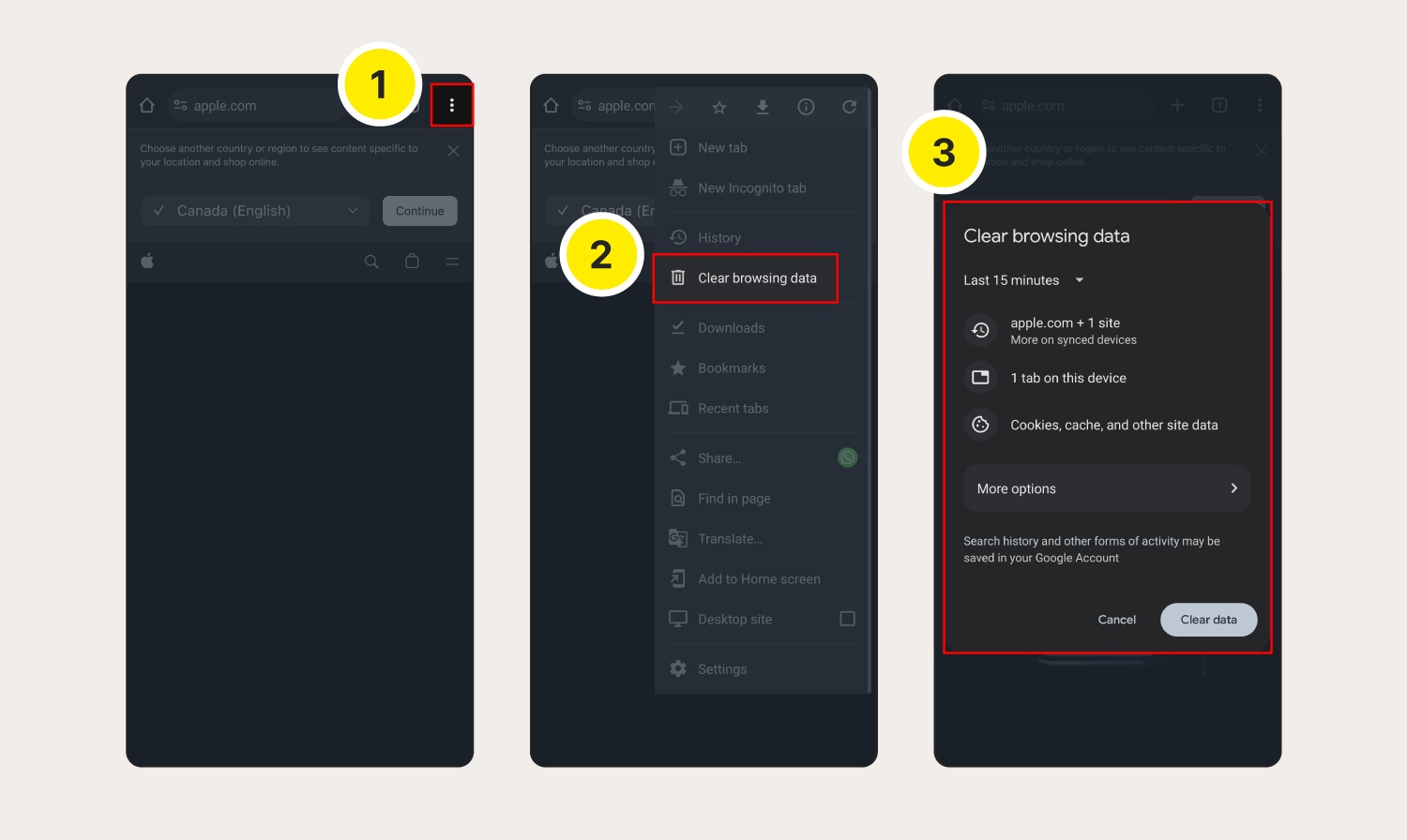
Open Chrome and tap the three dots in the top-right corner.
From the menu, select Clear browsing data.
Next, choose the time range and tap Clear data to confirm deletion.
Chrome on your iOS device
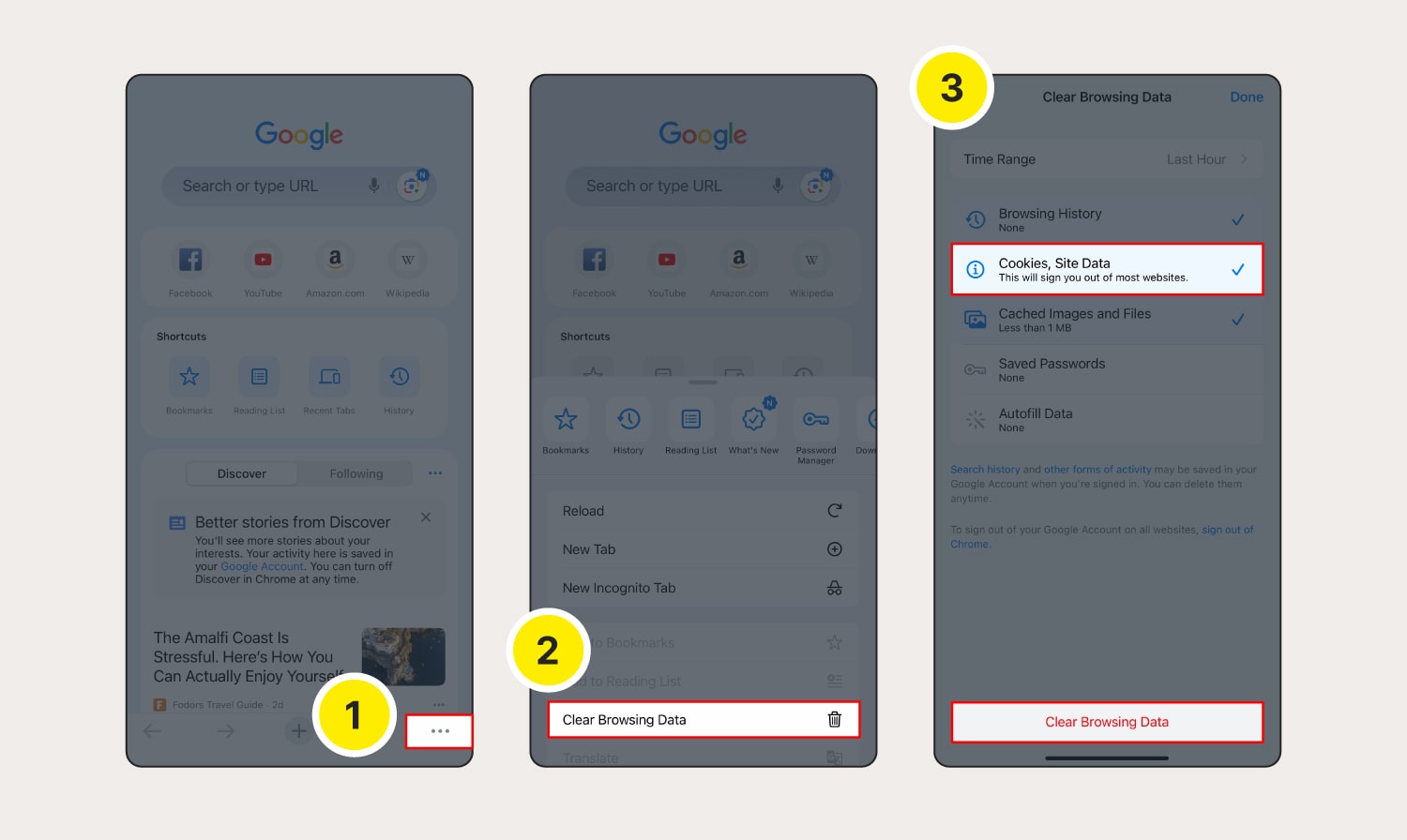
Here’s how to clear cookies on Google Chrome on your iPhone or iPad:
Launch Chrome and tap the three dots in the bottom right.
Select Clear Browsing Data.
Choose the time range for which you want to clear cookies, select Cookies, Site Data, and any other data you want deleted, then tap Clear Browsing Data.
How to clear cookies in Safari
It’s easy to clear cookies on Apple’s default browser, but the process is a bit different on desktop and mobile.
Safari on your macOS
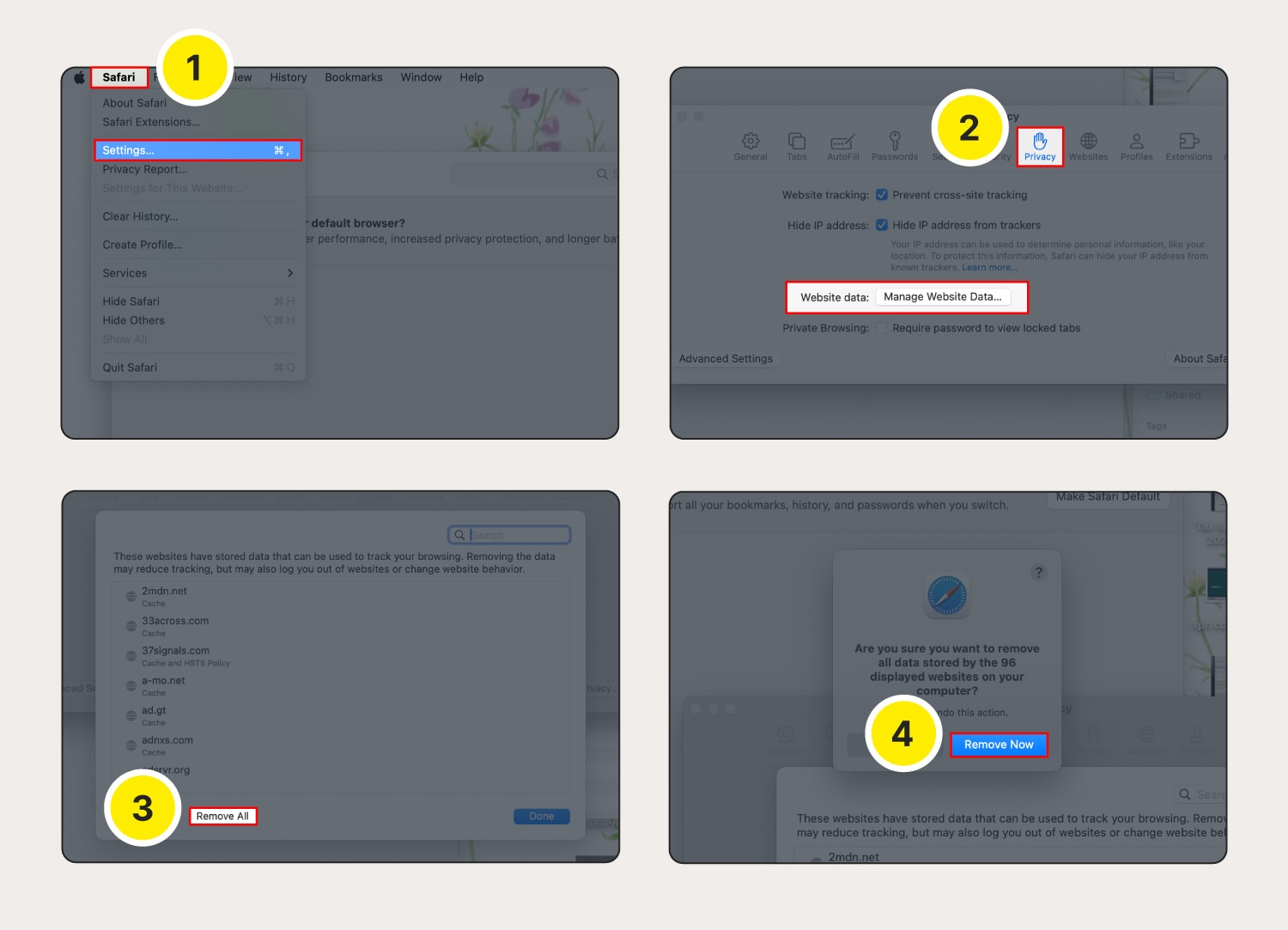
Here’s how to clear cookies on Safari on a computer (macOS device):
Launch Safari, then click the Safari menu and Settings.
Choose the Privacy tab, then click Manage Website Data.
Click Remove All.
Confirm by clicking Remove Now.
Safari on your iOS device
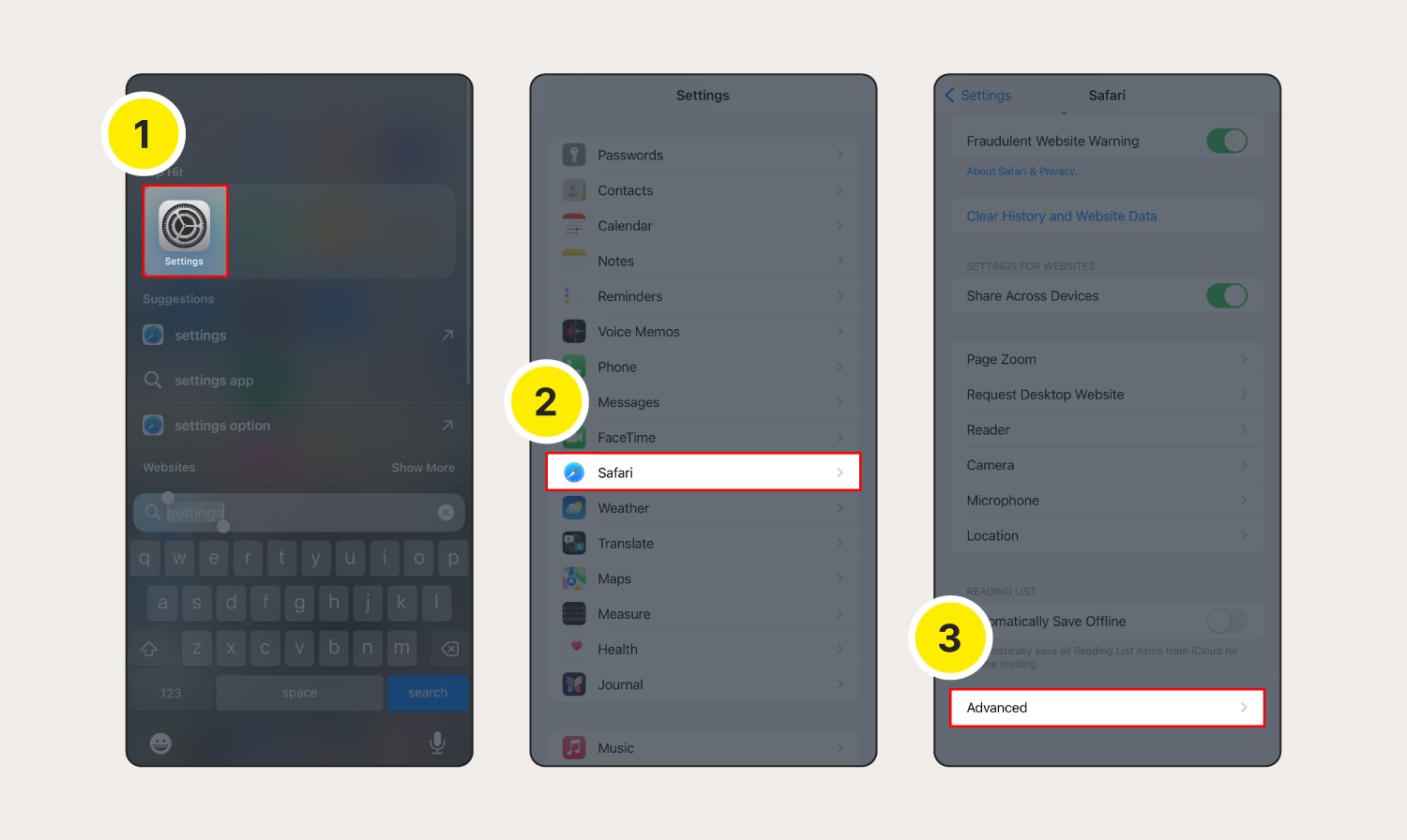
Clearing Safari cookies on an iOS device is also simple. Here’s how to do it:
Go to Settings.
Scroll down and tap Safari.
Scroll down and tap Advanced.
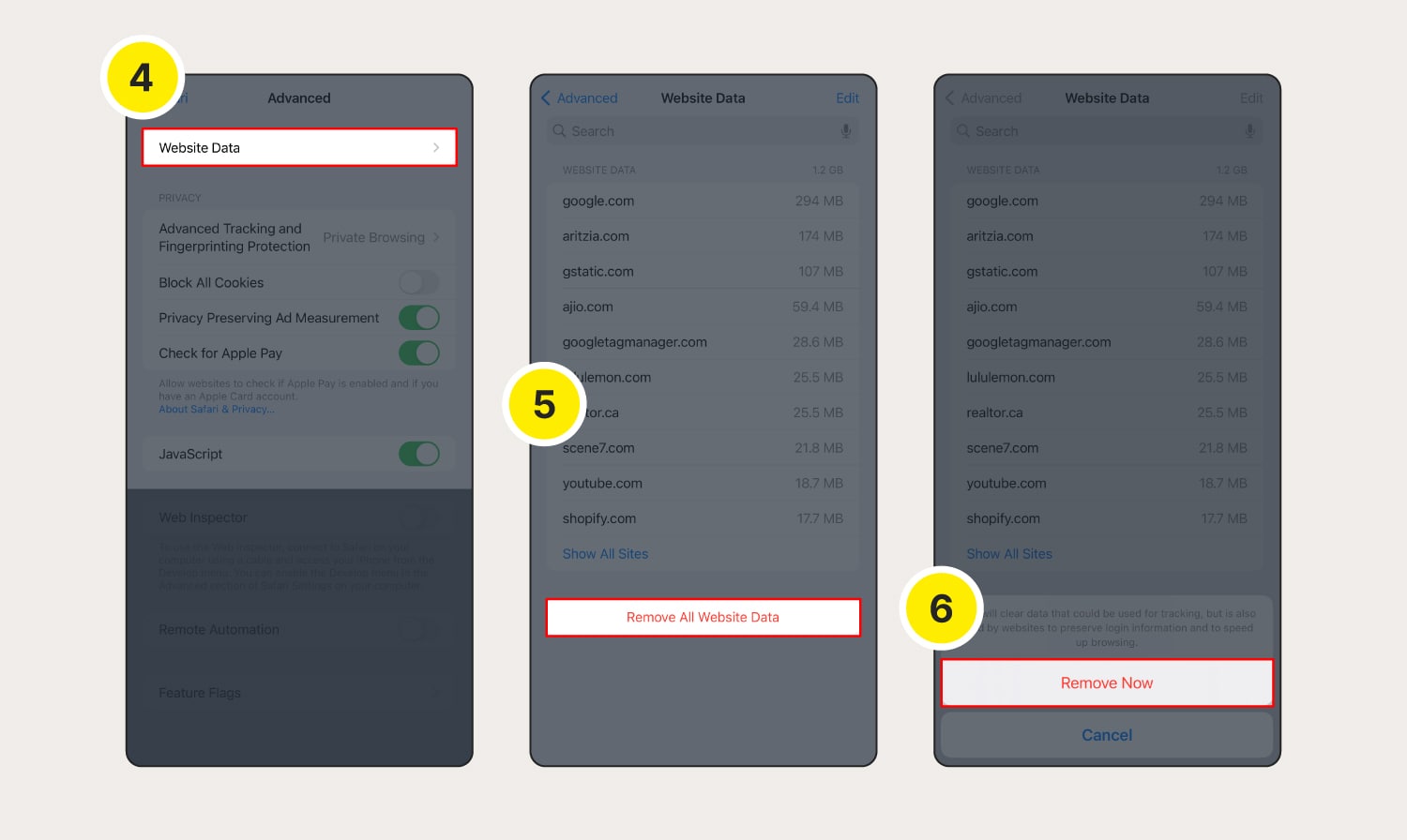
Tap Website Data.
Tap Remove All Website Data.
Tap Remove Now to confirm deletion.
How to clear cookies in Firefox
Follow these steps to delete cookies in Firefox across your desktop and mobile devices.
Firefox on your Windows or Mac computer
Here’s how to clear cache and cookies on your Firefox browser:
Open Firefox and click the settings icon in the top-right corner of the homepage.
Click Manage more settings.
Select Privacy & Security.
Scroll down to Cookies and Site Data and then click Clear Data.
Choose whether to delete cookies and/or cache, then select Clear.
Click Clear Now to confirm cookie and site data deletion.

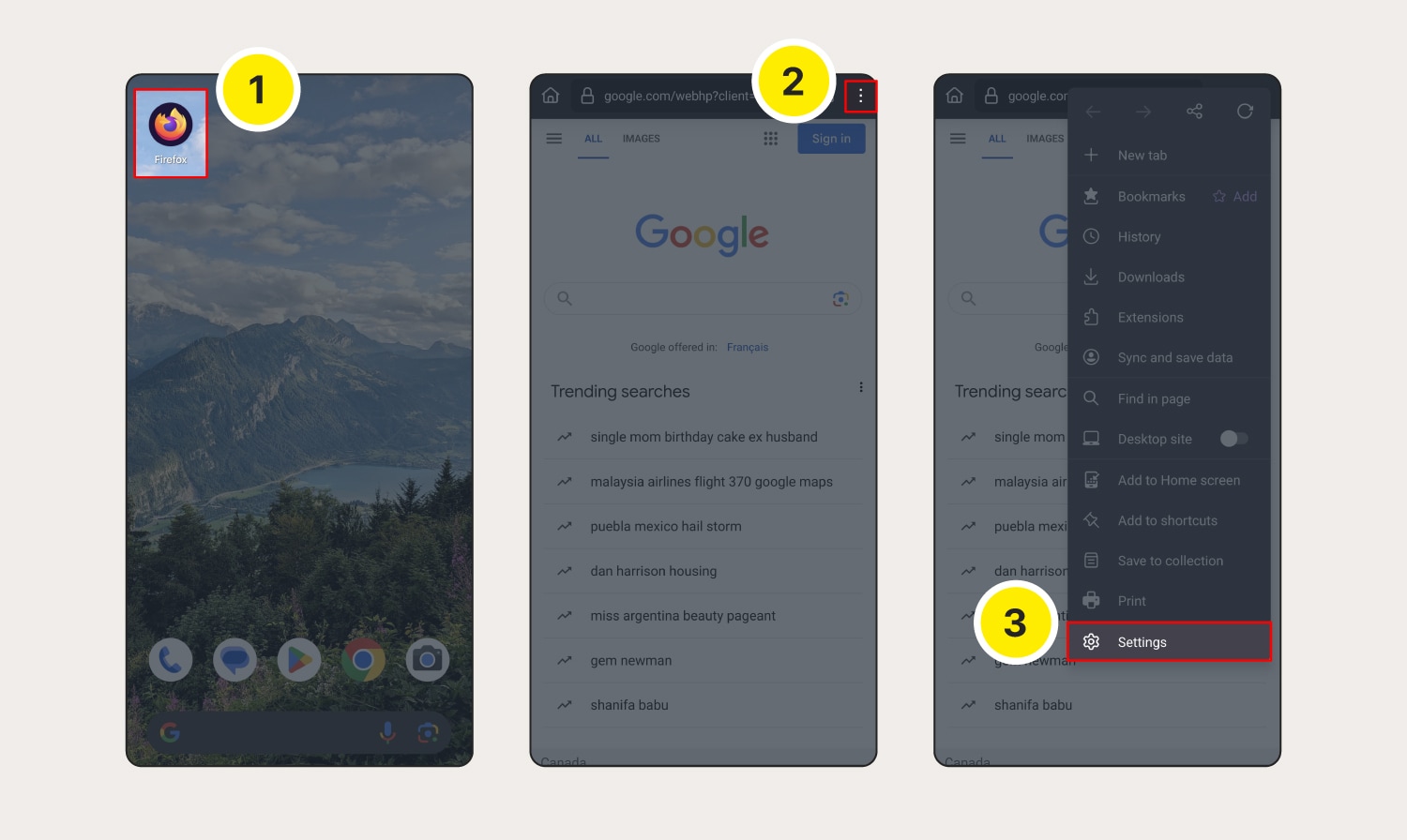
Firefox on your Android device
Here’s how to clear cookies and cache on Firefox on an Android:
Launch Firefox.
Tap the three dots (menu) at the top-right corner.
Go to Settings.
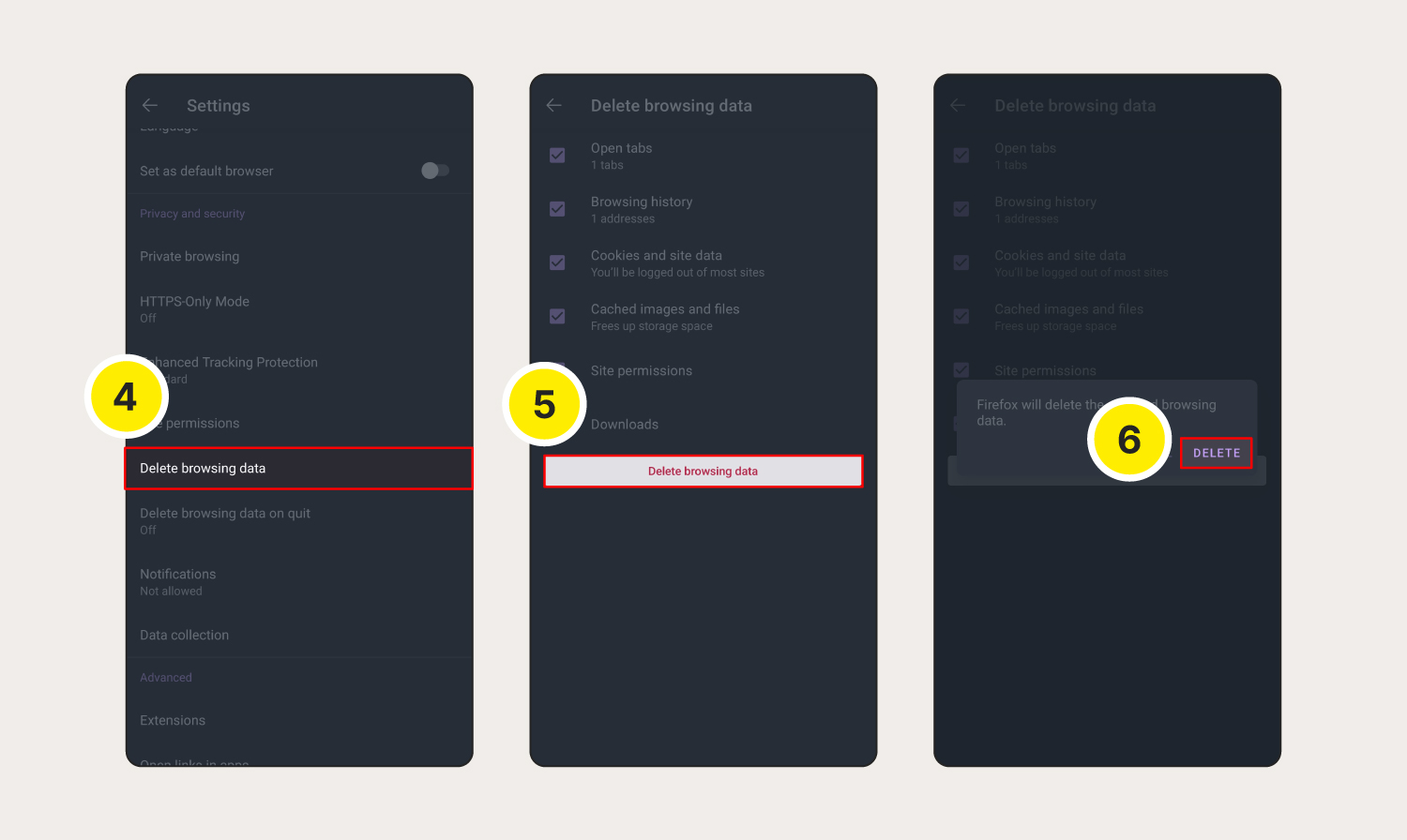
Scroll down and tap Delete browsing data.
Select Cookies and site data and Cached images and files, and any other data you want cleared, then tap Delete browsing data.
Select Delete in the pop-up window.
Firefox on your iOS device
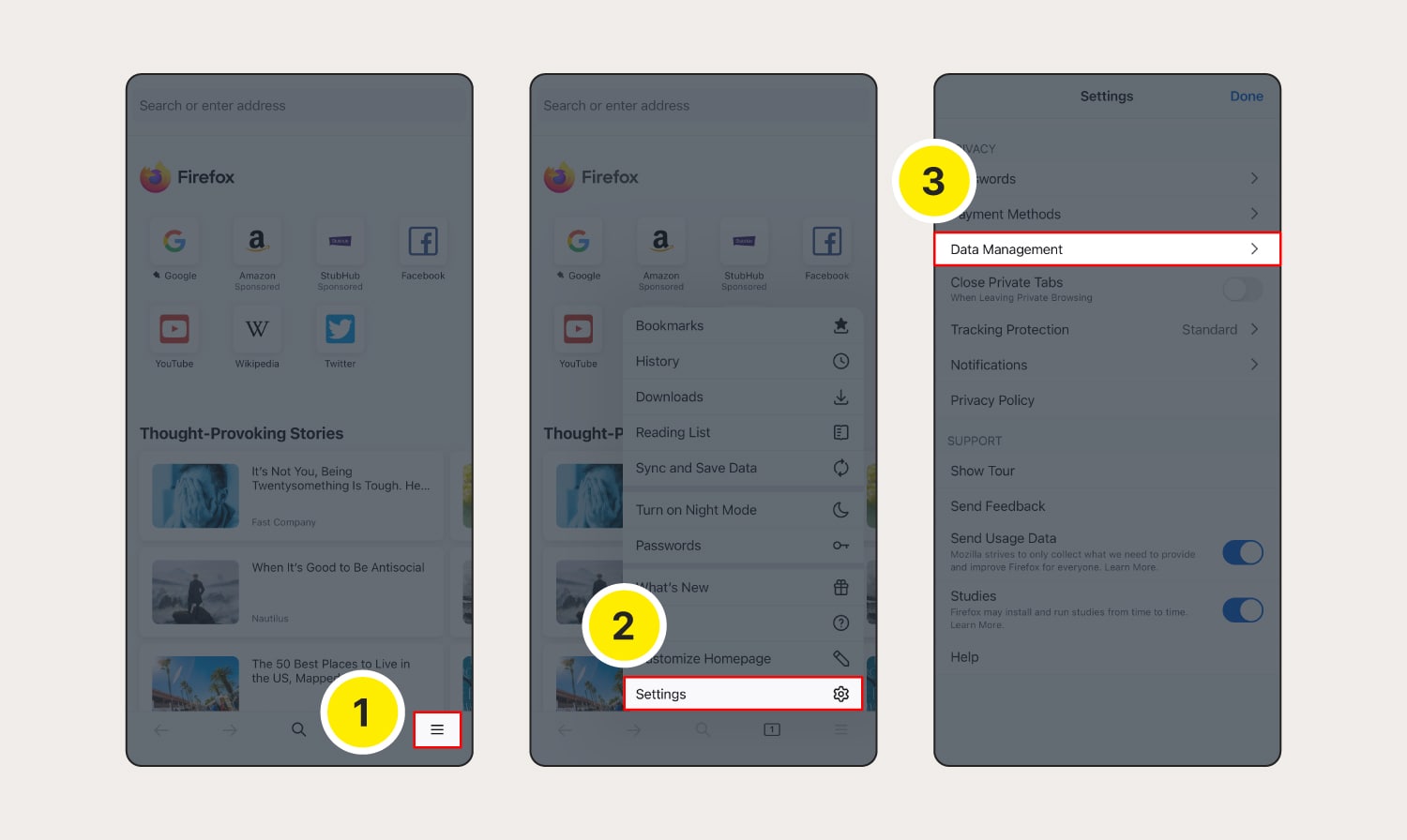
To clear cookies on Firefox on your iPhone or iPad, follow these steps:
Launch Firefox, then tap the three horizontal lines.
Select Settings from the menu.
Scroll down to Privacy and select Data Management.
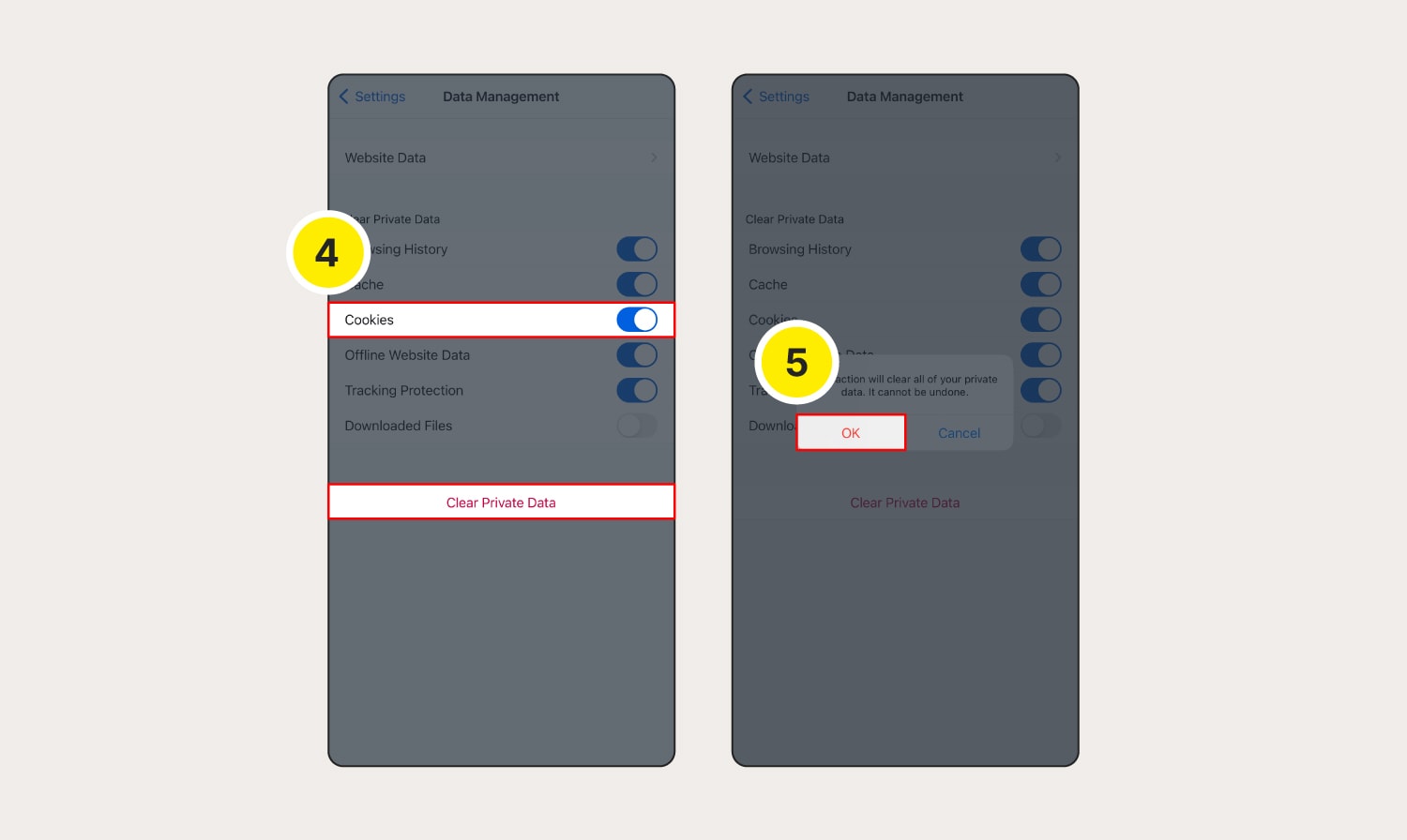
Toggle on Cookies and any other data you want deleted, then tap Clear Private Data.
Choose OK to confirm deletion.
How to clear cookies on Microsoft Edge
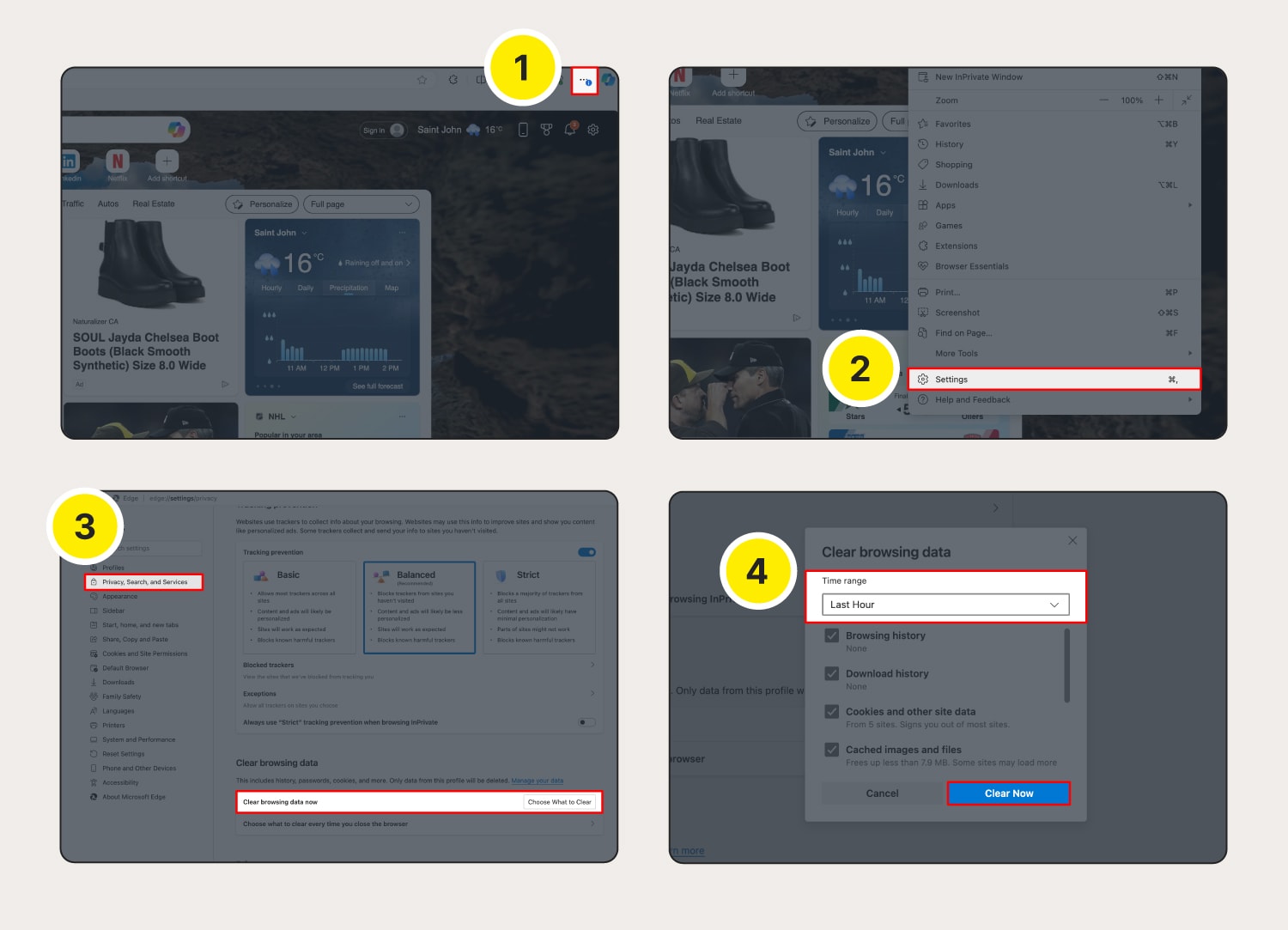
How to clear cookies on Microsoft Edge on a computer:
Launch Microsoft Edge and click the three dots on the top right corner.
Select Settings from the menu.
Go to Privacy, search, and services, then next to Clear browsing data now select Choose what to clear.
Select a time range and click Clear Now to confirm.
The steps for clearing cookies on Microsoft Edge on Android or iOS are virtually identical to the process on a computer:
Tap the three lines (Android) / three dots (iOS) at the bottom of the screen.
Tap Settings > Privacy and security > Clear browsing data.
Choose the time range and the data you want cleared, then tap Clear data (Android) / Clear now (iOS).